🧭 Overview
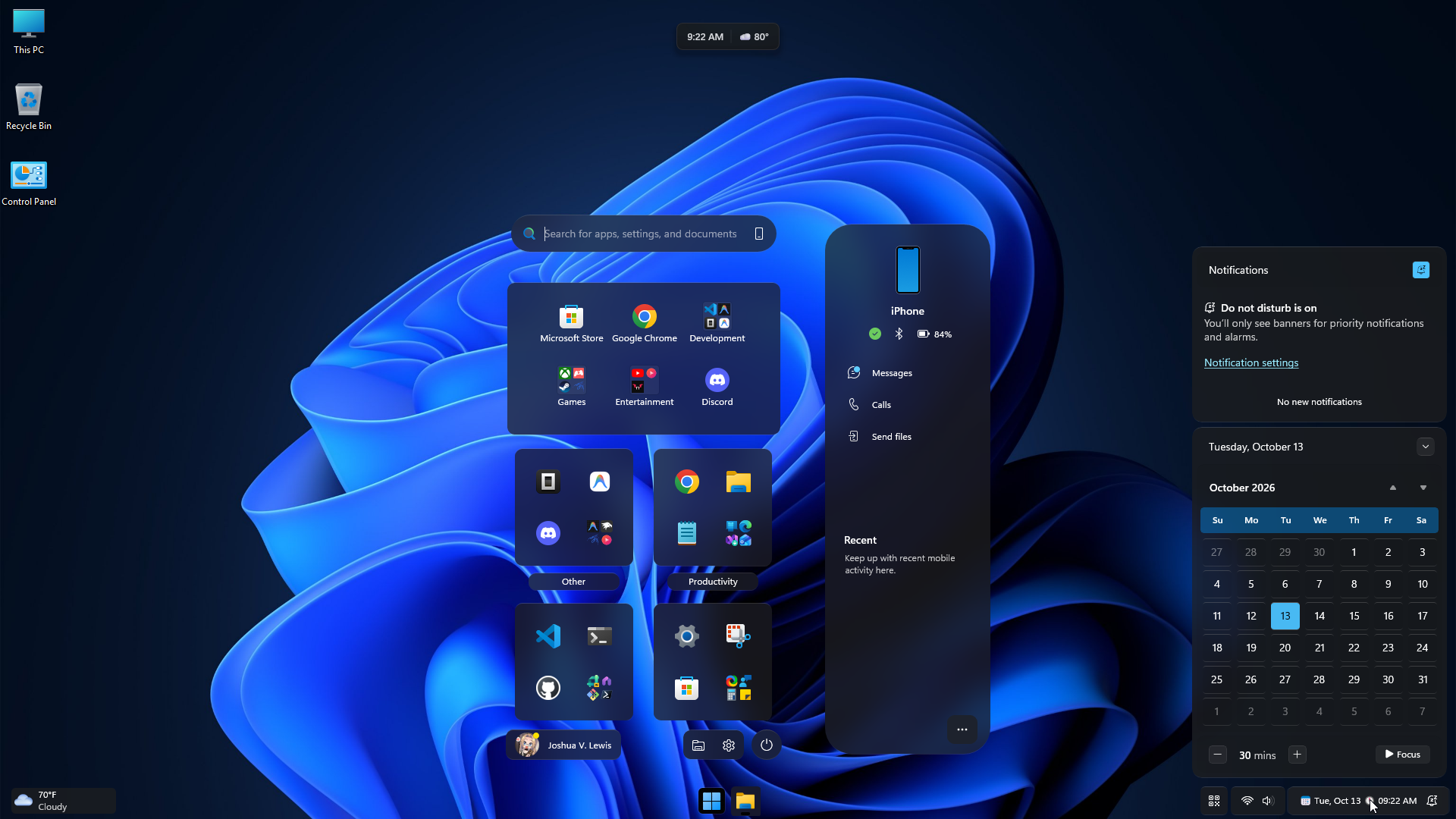
The Command Center Suite is our premier unified theme suite implementing the signature “Command Center Glass” design language for Windows 11. Engineered with precision mathematical tokens, it eliminates visual dissonance across disconnected shell surfaces and replaces flat, opaque Windows 11 chrome with high-performance translucent glass materials.
The suite spans floating taskbar pills, a Start Menu with separated-island flyouts and compact 2-column pinned categories, translucent Notification / Quick Settings panels, and the shell’s context menus, folder modal, and Snap Layout picker — all driven by one shared token set.
✨ Design Pillars
- Unified Frosted Blur: Consistent
WindhawkBlur(baseBlurAmount="20", tinted dynamically via{ThemeResource SystemChromeMediumColor}) establishes a solid frosted glass base across all shell panes. - Top-Lit Specular Rim: Signature multi-stop vertical gradient border (
#60808080→#50404040→#40808080) with physical glass edge lighting (BorderThickness="0.3,1,0.3,1"). - Proportional Radii Hierarchy: Strict radius tiers matching Windows 11 Fluent guidelines:
- XL (35px): Top-level panel frames and flyout hosts (Start Menu, Lock screen widgets, folder modal).
- L (25px): Search pills and large input surfaces.
- M (15px): Hover surfaces and elevated cards.
- S (10px): Tiles, buttons, list rows, and tooltips.
- XS (6px): Flyouts, context menus, and jump lists.
- Accent-Aware States:
SystemAccentColordrives active running indicators, volume / brightness HUD fills, and Lock screen clock highlights so interactive states track the user’s system accent. - Intentional Layering: Collapses distracting native drop shadows and heavy opaque overlays to let translucent glass cards float cleanly.
🔍 Supported Surface Mods
| Windhawk Mod | Targeted Surface | Status |
|---|---|---|
| Taskbar Styler | Taskbar panel, system tray, taskbar flyouts, Snap Layout picker, virtual desktop bar | ✅ Shipped Reference |
| Start Menu Styler | Start Menu frame, pinned grid, all apps, search pill, shell flyouts & context menus, folder modal, Lock screen | ✅ Shipped Reference |
| Notification Center Styler | Action center, Quick Settings flyout, calendar grid | ✅ Shipped Reference |
| Settings Styler | Navigation sidebar, card views, settings search | 🌐 In Base Scope |
| File Explorer Styler | Tabs, address bar, navigation tree | ⏸️ Deferred (M.03) |
🛠️ Installation & Setup
- Install Windhawk on Windows 11 (22H2, 23H2, or 24H2).
- Install the three core styler mods from the Windhawk Mod Manager:
- Windows 11 Taskbar Styler
- Windows 11 Start Menu Styler
- Windows 11 Notification Center Styler
- Copy the YAML styler configurations from the suite directory in the repository:
- Paste into the respective mod’s Advanced tab in Windhawk settings and click Save.
🧩 Configuring the Companion Extras
Beyond the three core styler mods, the suite ships an optional extras set: curated companion-mod configurations that extend the Command Center Glass aesthetic into supplemental shell utilities, status indicators, dialogs, and flyouts. Each extra is non-invasive — it applies only to its own official Windhawk mod and never replaces the core styler YAMLs.
| Companion Mod | Mod ID | Configuration File | Targeted Process / Scope |
|---|---|---|---|
| Dynamic Island for Windows | dynamic-island-for-windows |
dynamic-island-for-windows.yml |
Floating top-center pill: media, volume HUD, hardware stats, weather, privacy indicators |
| Enhanced Disk Usage | enhanced-disk-usage |
enhanced-disk-usage.yml |
explorer.exe — rounded glass drive-capacity bars in File Explorer |
| File Operations Styler | file-operations-styler |
file-operations-styler.yml |
explorer.exe — circular progress and typography for copy/move/delete dialogs |
| Fully Customizable Winver | fully-customizeable-winver |
fully-customizeable-winver.yml |
winver.exe — minimalist slate “About Windows” card |
| Shell Flyout Positions | shell-flyout-positions |
shell-flyout-positions.yml |
explorer.exe — tray-aligned Notification/Action Center and bottom-anchored Start Menu |
| Start Button Colorizer | start-button-colorizer |
start-button-colorizer.yml |
explorer.exe — tints the taskbar Start glyph to the system accent |
| Taskbar Clock Customization | taskbar-clock-customization |
taskbar-clock-customization.yml |
explorer.exe — seconds display, custom format, and hover telemetry HUD |
| Taskbar Tray and Icon Tweaks | taskbar-tray-and-icon-tweaks |
taskbar-tray-and-icon-tweaks.yml |
explorer.exe — tray declutter, smart bell visibility, compact Show Desktop area |
Installing an Extra
- Open Windhawk → Explore and install the desired companion mod (e.g. Taskbar Clock Customization, Dynamic Island for Windows).
- Open the mod’s Details → Settings and switch to Advanced / Textual mode if needed.
- Copy the entire contents of the matching YAML from
projects/command-center/extras/and paste it into the mod’s settings editor. - Click Save settings. The configuration applies immediately — no Explorer or system restart required.
Note: Extras are optional and independent — install only the ones you want, and each applies to a separate official mod. Companion mod updates can add or rename fields, so re-validate a config after updating its mod. For per-mod design notes and the exact values each YAML applies, see the extras reference ↗.
🧪 Verification & Gate Status
- Static Validation Gate:
pwsh -NoProfile -File tools/Test-WindhawkStyles.ps1verified with 0 errors. - Windows 11 Compatibility: Verified across Windows 11 builds
22631.x(23H2) and26100.x(24H2).